
Video formats for smooth projection mapping
By Chant Choi · Updated 21 October 2026 · 8 min read
Which video files play smoothly in the browser for projection mapping: codecs, resolution and bitrate, transparent video, seamless loops and reversing.
Kaleidal Mapper plays video with your browser's built-in decoder, which uses your computer's graphics hardware. Choosing the right format makes the difference between silky playback and stutter.
The safe choice: H.264 MP4
If in doubt, use H.264 video in an .mp4 file. Every browser plays it, on every computer.
Good settings for most mapping work:
- Resolution: match your projector — usually 1920×1080. Larger files don't look sharper on a 1080p projector, they just use more power.
- Frame rate: 30 or 60 frames per second.
- Quality: a bitrate around 10–20 Mbps for 1080p looks excellent.
- Audio: remove it if you don't need sound — the file gets smaller.
Most editing apps (Premiere, Final Cut, DaVinci Resolve, CapCut) and the free HandBrake can export these settings.
Other formats
- HEVC (H.265): smaller files at the same quality. Plays in Safari and in Chrome/Edge on computers with hardware support.
- WebM (VP9 or AV1): plays in Chrome, Edge and Firefox, and in recent Safari versions.
- ProRes (.mov): plays only in Safari. Great quality, very large files.
- Images: PNG, JPEG and WebP; PNG keeps transparency. Animated GIFs work too.
If a file won't play, Kaleidal Mapper shows a message in the layer's panel. Re-export it as H.264 MP4.
Transparent video
Transparent video lets you layer a figure or logo over other visuals without a black box around it.
- WebM with alpha (VP9) is transparent in Chrome, Edge and Firefox.
- HEVC with alpha (.mov) is transparent in Safari.
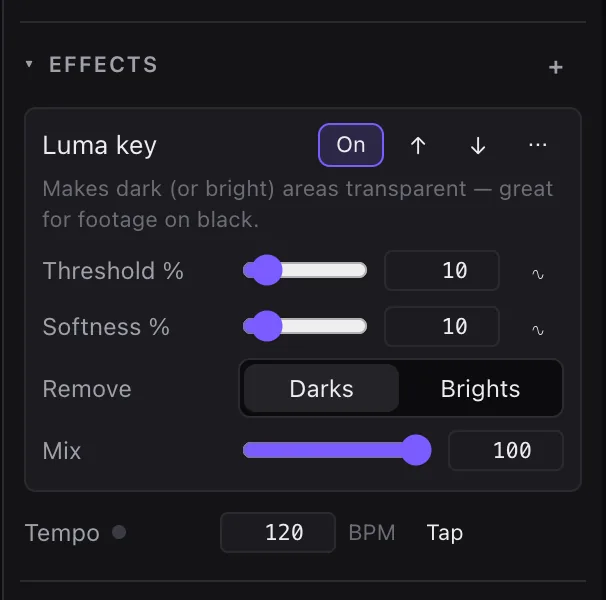
If your video has a plain black background instead, you can drop the black out live: add a Luma key effect to the layer (Effects → +). For green-screen footage, use Chroma key (a Pro effect, coming soon).
Seamless loops
A loop "jumps" when the last frame doesn't match the first. Fixes:
- Edit the clip so it ends where it began (many stock loops are made this way).
- Use Fade in and Fade out under Fades & audio, so the jump happens in darkness.
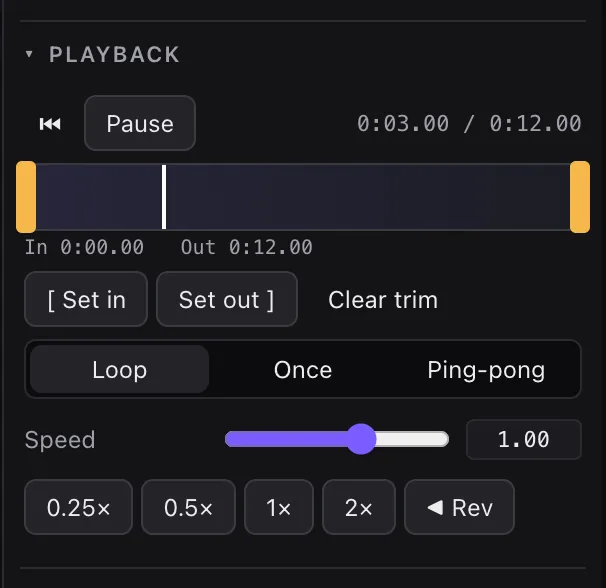
- Use Ping-pong under Playback: the clip plays forward, then backward, so there's never a jump. It works best on footage without obvious direction, such as smoke, water or abstract motion.
Smooth reverse and scrubbing
Kaleidal Mapper can play clips backwards (negative Speed, or ◀ Rev). Most H.264 files are compressed with keyframes every second or two, so the browser has to work hard to step backwards and reverse can look choppy.
For smooth reverse playback, export with every frame as a keyframe ("all-intra", or a keyframe interval of 1). Files are larger but reverse and scrubbing become smooth. ProRes is all-intra already, but plays only in Safari.
For the technically minded, this FFmpeg command makes a reverse-friendly H.264 file without audio:
ffmpeg -i input.mov -c:v libx264 -crf 18 -g 1 -pix_fmt yuv420p -an output.mp4
Trimming instead of re-exporting
You don't need to re-export just to shorten a clip. Select the layer and drag the yellow in and out handles on the trim bar under Playback, or press Set in / Set out at the playhead.
Sound
Sound plays from the computer running the editor, at normal forward speed. It's silent in reverse and ping-pong. Follow opacity fades the sound with the layer, which makes crossfades between clips smooth.
Colour: LUTs
If your footage was graded with a LUT, or you want a consistent look, import a .cube file and choose it under Colour → LUT on the layer. LUTs are part of Pro (coming soon).